Users & access
Several people can work in the same restaurant, each with the rights they need. You manage them in the Users view of the dashboard.
Roles
Every person has one role per restaurant.
| What they can do | Staff | Manager | Owner |
|---|---|---|---|
| Home, Calendar, Reservations | ✅ | ✅ | ✅ |
| Floor plan: view | ✅ (read-only) | ✅ | ✅ |
| Floor plan, tables, layouts, opening times, settings: change | With a manager's PIN | ✅ | ✅ |
| Analytics | ❌ | ✅ | ✅ |
| Users: invite, change, remove, audit log | ❌ | ✅ (staff only) | ✅ |
| Billing: view status | ✅ | ✅ | ✅ |
| Billing: subscribe, cancel, reactivate | ❌ | ❌ | ✅ |
| Add another restaurant | ❌ | ❌ | ✅ |
- Owner can do everything, including billing.
- Manager runs the restaurant day to day: settings, opening times, floor plan, analytics and staff. A manager has no access to billing.
- Staff handle the daily work: reservations, calendar and viewing the floor plan.
The menu and the pages you can open follow your role. The same rules are also enforced on the server, so a hidden page cannot be reached by typing its address.
TIP
A restaurant always has at least one owner. The last owner cannot be demoted, deactivated or removed.
Inviting people
Owners and managers invite people from Users. A manager can only invite staff; an owner can invite any role.
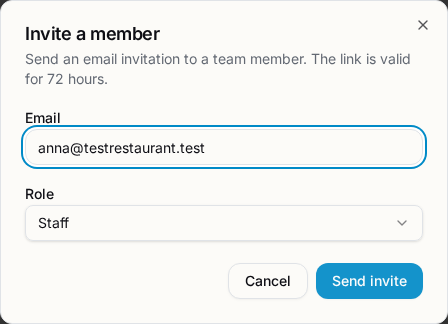
- Open Users and choose to invite someone.
- Enter their email address and pick a role.
- The person receives an email.
- New to TimeNTable: the link opens a page where they enter their name and a password. The account is created and they join the restaurant.
- Already has an account: the invite appears in the bell icon and as a banner on the Home page after they log in. They can accept it or hide it.
Pending invites are listed in the Pending invites table, where you can revoke them.
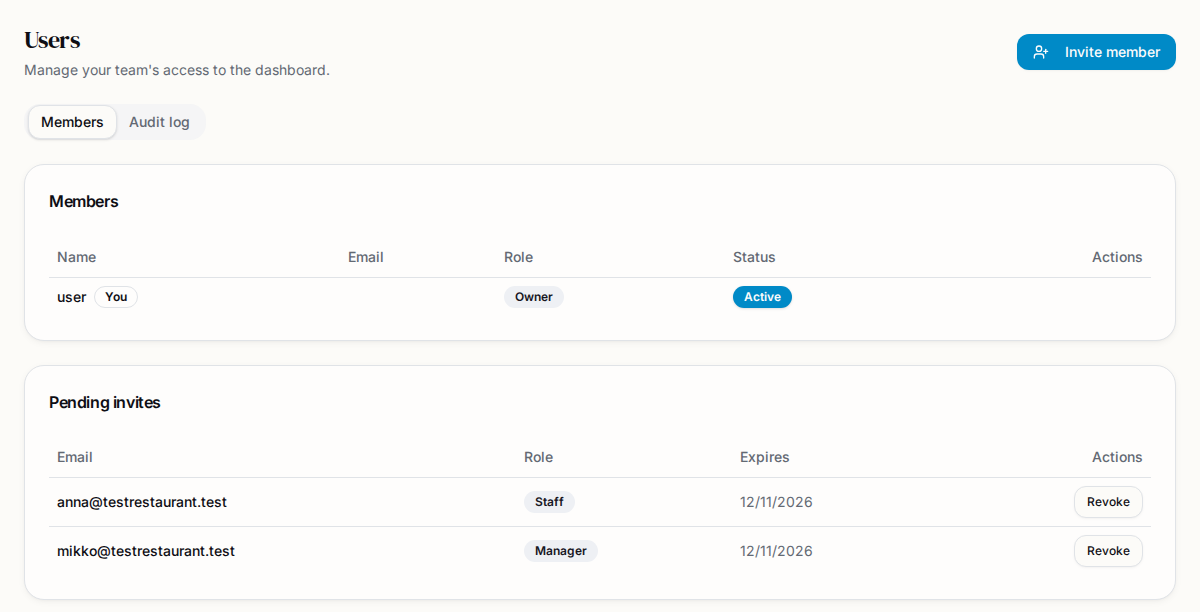
Good to know:
- An invite is valid for 72 hours.
- The invite always looks "pending" to you, whether or not the person already has an account.
- An invite stops working if the person who sent it loses the right to send it (for example, they are removed or demoted).
- You get an email when someone accepts your invite.
- You can revoke a pending invite before it is accepted.
Managing members
In Users you can:
- Change a role (promote or demote).
- Deactivate a person. They are locked out but can be reactivated later.
- Remove a person. Access ends immediately, even if they are still logged in; they see an "access removed" page.
Limits:
- You cannot edit or remove yourself.
- A manager can only manage staff.
- Demoting a person to staff, or deactivating them, deletes their PIN.
- A removed person can be invited again later.
You can change your own display name in your profile.
Manager PIN on a shared tablet
Many restaurants keep a tablet at the entrance that anyone can pick up. Staff can use it for reservations without a manager being logged in. When someone needs to do a manager-only action, such as editing the floor plan, a manager can approve it with their personal PIN.
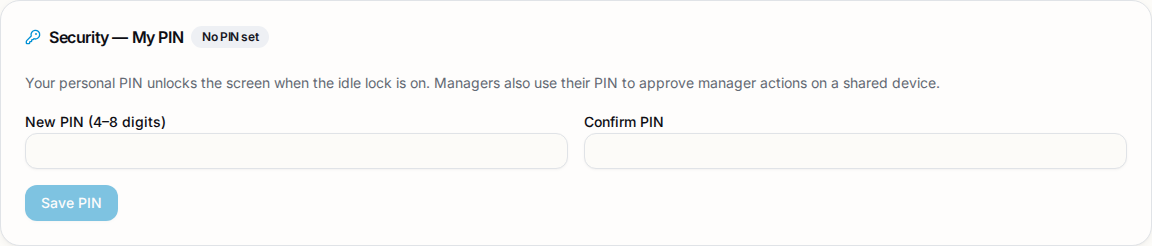
Set your PIN
Every person sets their own PIN of 4–8 digits in the Security — My PIN card (found on the Home and Users pages).
Approve an action (manager mode)
- When staff try something that needs a manager, a dialog asks who is approving.
- The manager picks their name and enters their PIN.
- Manager mode turns on for 10 minutes. Nobody is logged out, and an amber banner with a countdown is shown.
- Press End now in the banner to end it earlier.
Manager mode never lifts the most sensitive limits. Billing and user management always need the person's own login. A borrowed PIN does not unlock them.
Wrong PINs
After 5 wrong attempts the PIN is locked for 15 minutes. Wrong guesses at approval only lock that manager's approval, not their own screen unlock.
Floor plan for staff
Staff see the floor plan as read-only. Pressing Unlock with manager PIN starts manager mode. When it ends, editing locks again; an unsaved draft stays on screen until a manager approves again or you discard it.
Idle lock
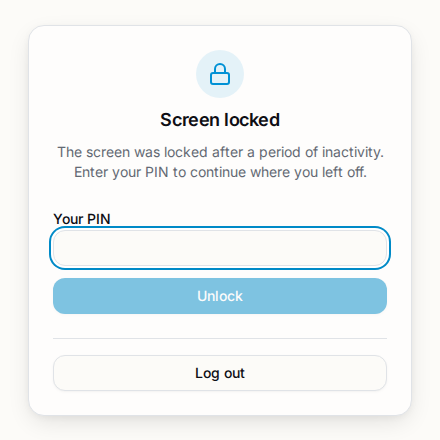
The idle lock hides the dashboard when nobody has used it for a while. It is recommended for shared devices.
A manager turns it on in Settings → Idle lock and sets how many minutes of inactivity trigger it (1–120, default 5). It is off by default and applies to everyone who uses the restaurant, staff included.
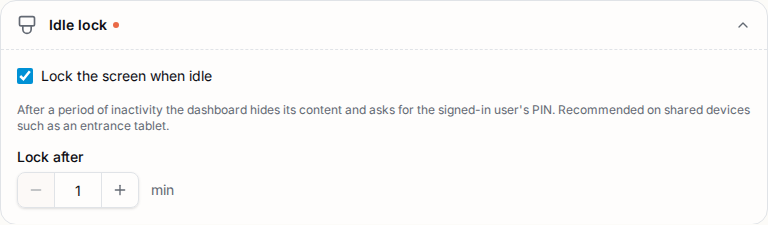
When it locks, the screen looks like this:
How it works:
- Clicking, touching, typing, scrolling and moving the mouse count as activity. Anyone using the screen is never locked out.
- When it locks, the content is hidden and manager mode ends.
- To unlock, the signed-in person enters their own PIN.
- If they have no PIN, the screen can only be unlocked by logging out and in again. Home reminds people to set a PIN while the lock is on.
- Log out on the lock screen asks for confirmation first.
INFO
The idle lock is a privacy guard against someone walking up to the device. It is not a replacement for logging out on a device you leave behind.
Audit log
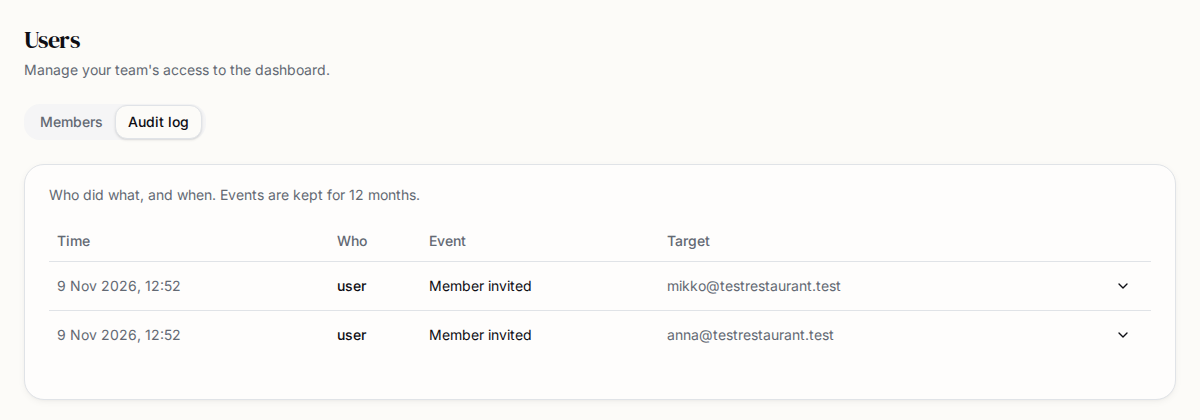
The audit log records who did what. Managers and owners open it in Users → Audit.
It includes user changes, invites, billing actions, PIN events and anything done in manager mode, with the name of the manager who approved it. Entries are kept for 12 months, or until the restaurant's data is deleted.
Several restaurants
One login can belong to several restaurants.
- If you belong to more than one, a restaurant switcher appears in the sidebar. Switching ends any active manager mode.
- Owners can add another restaurant with Add restaurant. It starts with its own 14-day free trial, and you become its owner.
Frequently asked
Can staff change settings? Only with a manager's PIN, and only for 10 minutes at a time.
Someone left the restaurant. What do I do? Remove them in Users. Access ends immediately.
I forgot my password. Use "Forgot password" on the login page. If you are the only owner and cannot log in, contact info@timentable.fi.