Calendar & table map
The calendar view has two modes: Timeline, which lists reservations as table columns, and Floor, which shows the same information directly on top of the floor plan. Switch modes with the control in the top right.
Timeline
Timeline refreshes automatically about every 30 seconds, so you see new reservations in near real time. Navigate days with the Today button and the arrows; each table appears as its own column.
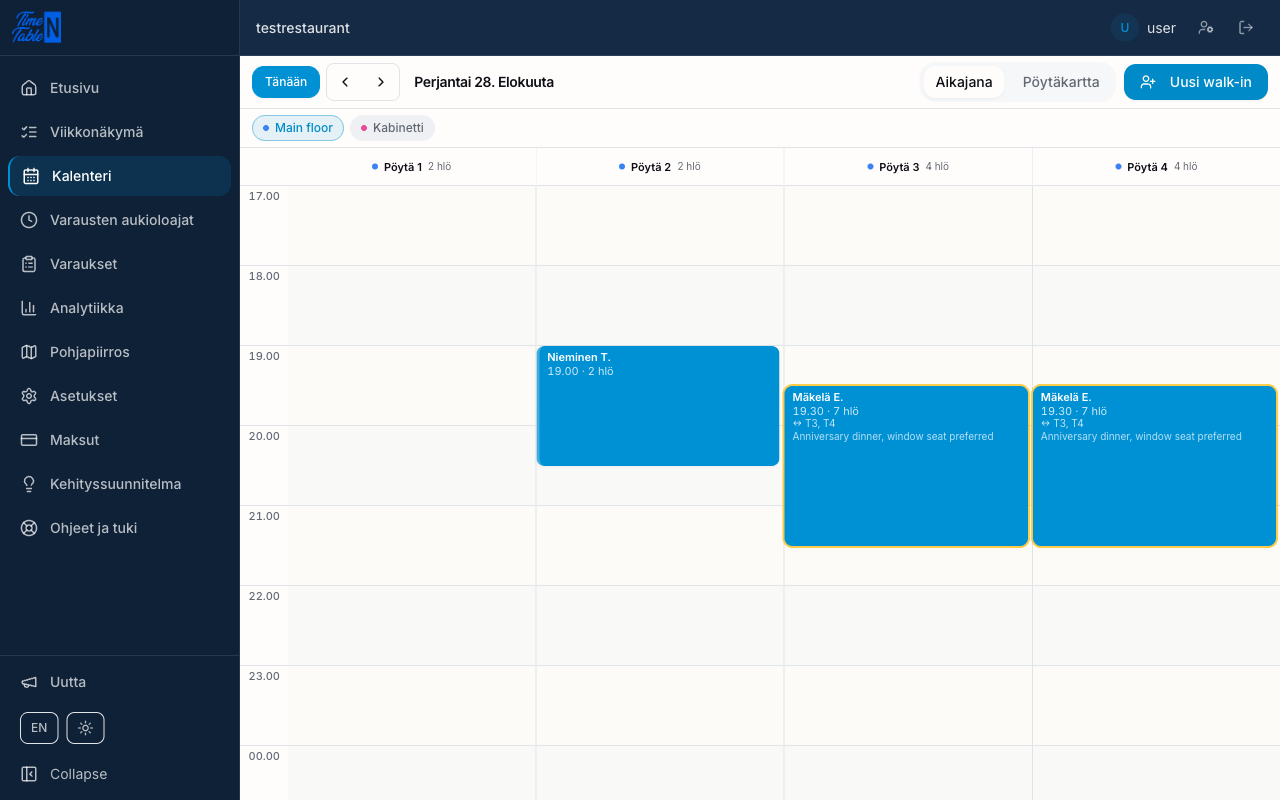
If your restaurant has more than one layout active at the same time (for example the main room and a terrace both open on a summer day), a Layouts shown filter appears above the timeline. Each layout gets its own color: a small dot on the column header shows which layout a table belongs to, and the filter's chips show which layouts are currently included. Click a layout's name to hide (or show again) its tables on the timeline. A layout chip only appears while that layout is active that day, so a single-layout restaurant usually never sees this filter at all.
An extra Other tables chip appears whenever a table isn't covered by any of today's layout chips — either because it hasn't been placed on any layout yet, or because its only layout is switched off, outside its season, or not scheduled for today's weekday. Rather than silently disappearing, that table's reservations always stay reachable under this chip; click it to show or hide them like any other layout.
Floor
Floor mode shows table status directly on the floor plan, and lets you select a table to see its reservations.
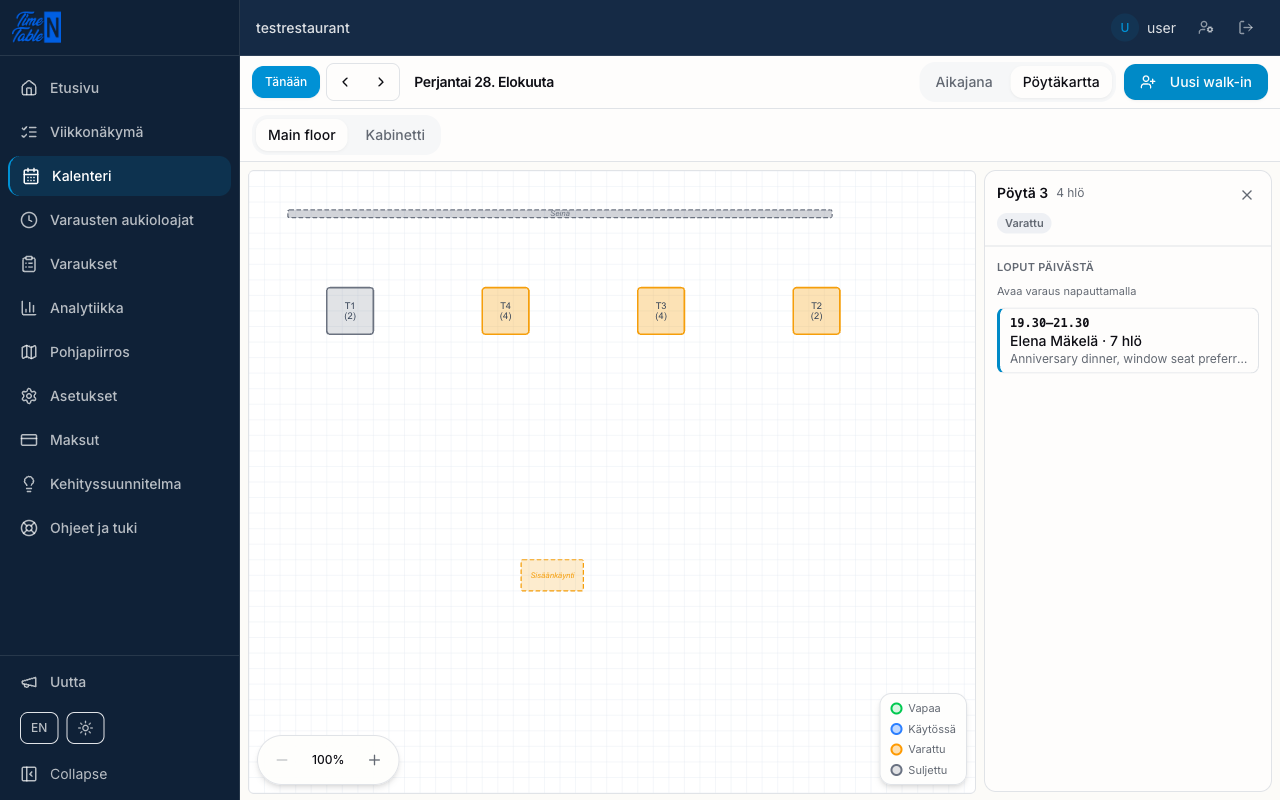
The floating legend in the corner explains the colors:
- 🟢 Available
- 🔵 Occupied — a reservation is in progress right now
- 🟠 Reserved — an upcoming reservation within the next few hours (inside the booking window set in Settings)
- ⚪ Closed
The Occupied status and the "frees at…" note always reflect the current moment, so they only appear while you're viewing today. On other days a table shows as Available or Reserved (if it has reservations that day) — or Closed, if the restaurant isn't open at all that day. Day navigation (Today, arrows) also works on the map, so you can check any day's status.
If your restaurant has more than one layout active on the viewed day, the same layout strip as in the editor appears above the map — switch layouts to see each one's floor plan.
Tap a table to see its reservations in a sidebar: for today, the sidebar heading is Rest of today; for other days it's Reservations. Tap a single reservation to open it.
Walk-in reservation
The New walk-in button (top right of the calendar, in both modes) opens a quick booking flow where you pick a group size and the system suggests suitable tables.
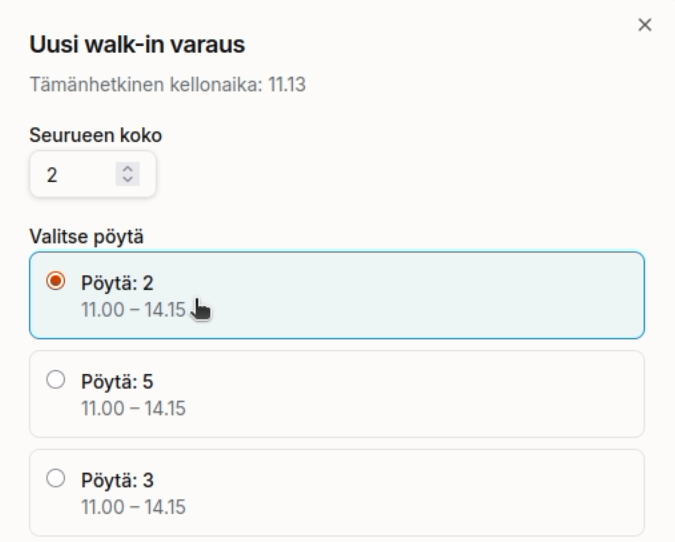
Select the group size, choose a suitable table from the ones the system suggests, and confirm the reservation.